Google Cloud Platform Cluster Setup
Creating A New Project
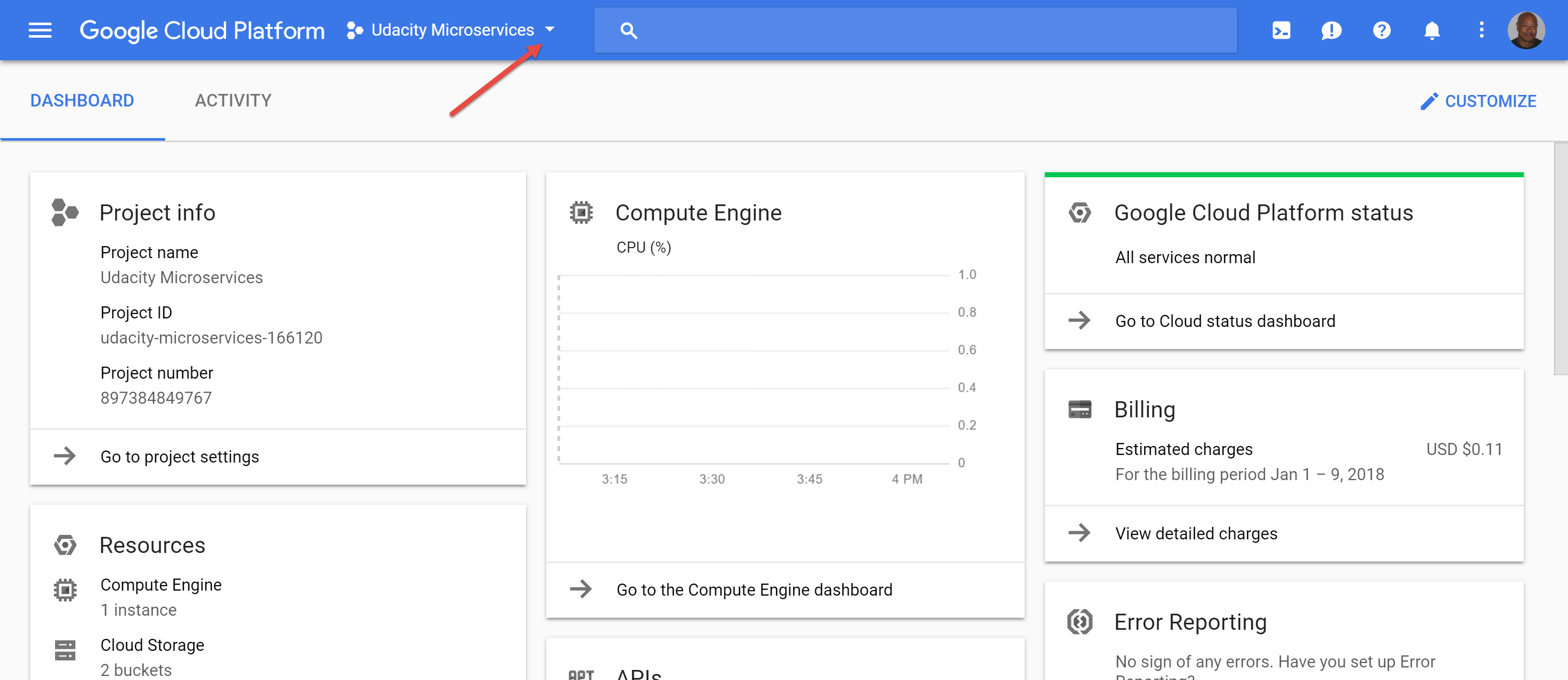
Navigate to Google Cloud Platform and click on the project down-arrow to pull up the project selection dialog box:
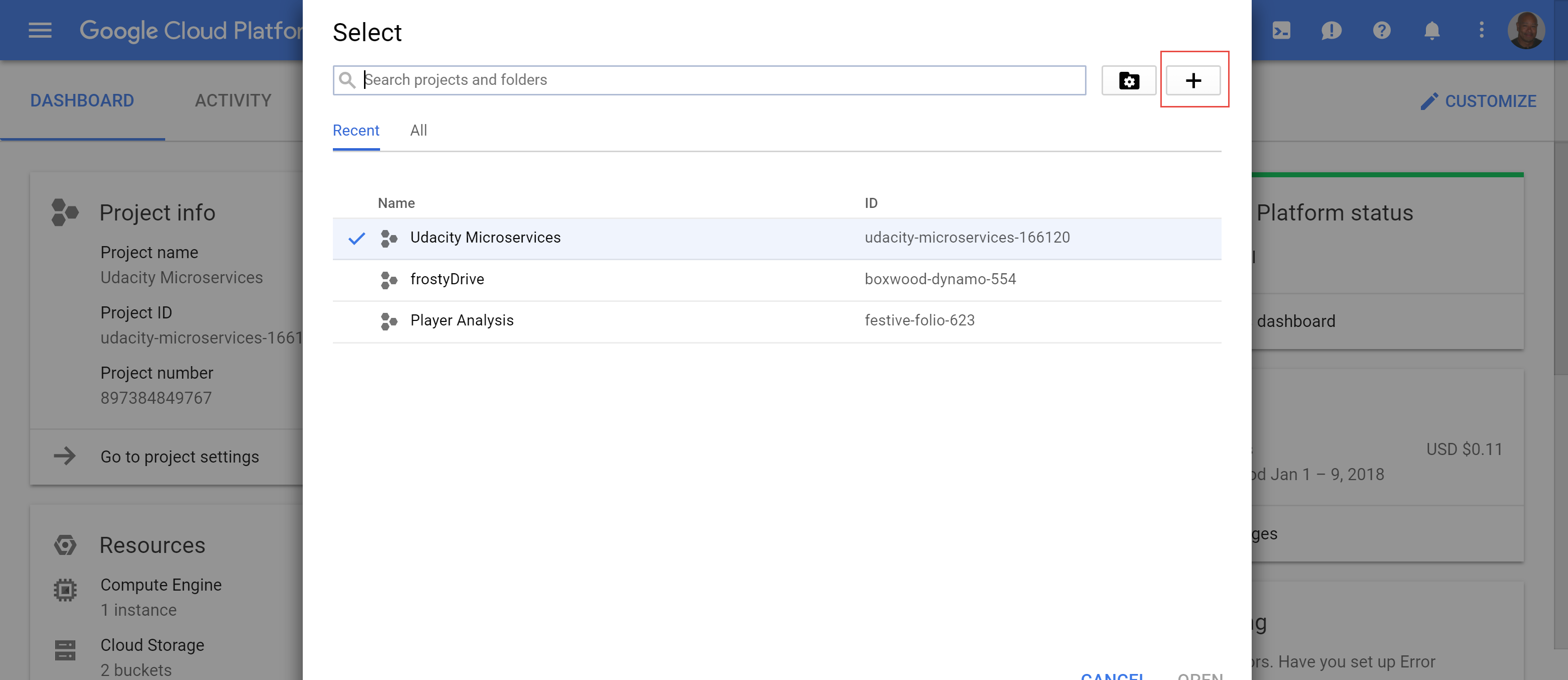
In the project selection dialog box, click on the ‘+’ button. In the next dialog, give your project a name and wait for it to come up before clicking on the project name link back in the project selection box.
Creating a Gerrit Server Cluster
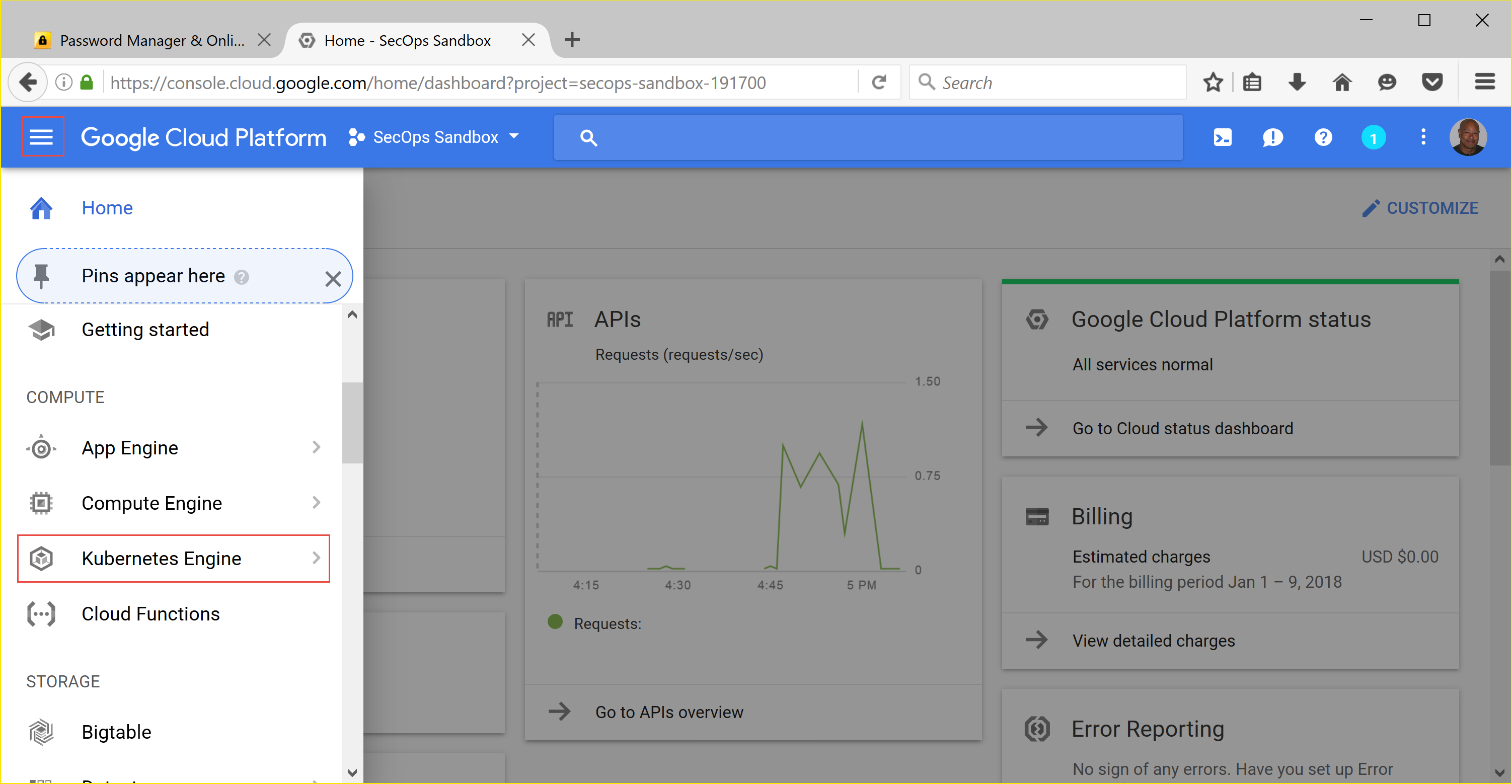
Once the project has come up, from the project dashboard, click on the three horizontal lines in the upper left next to Google Cloud Platform to show the Product & Services menu. Scroll down to Kubernetes Engine and select Kubernetes Clusters and click on the Create Cluster button to create a Kubernetes cluster.
Fill in the relevant info. My cluster creation data was:
Name: gerrit-cluster
Machine Type: small
Size: 2
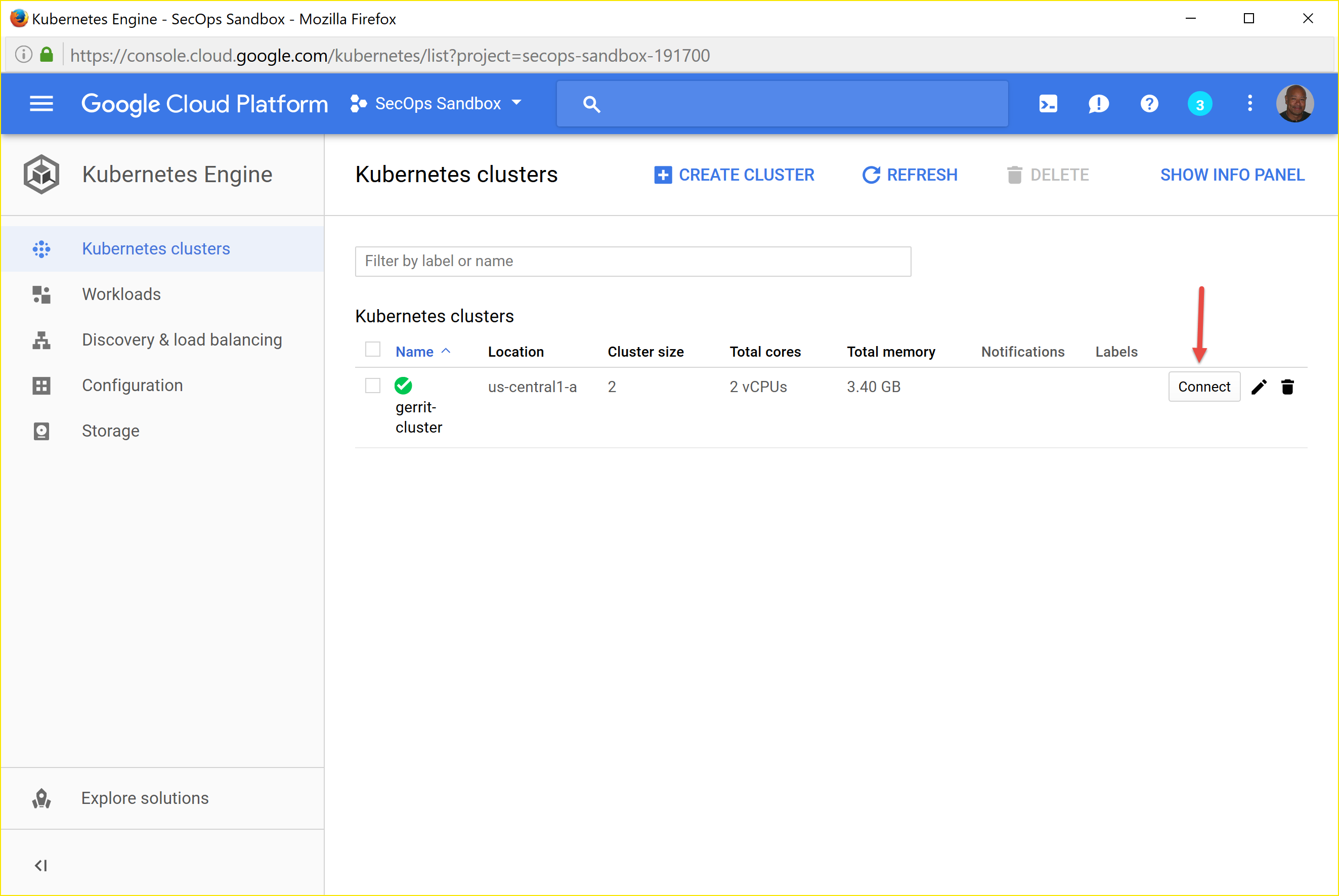
The rest of the options I left defaulted. Click the Create button and wait for the cluster to be created. This can take 2-3 minutes. Once the cluster is created, click on the ‘Connect’ button to access the Google Cloud Shell to configure your cluster.
I ran the following commands pulled from Google Cloud Platform Kubernetes Quick Start Guide. It’s a little dated as many of the cluster creation commands are now automated by the above process.
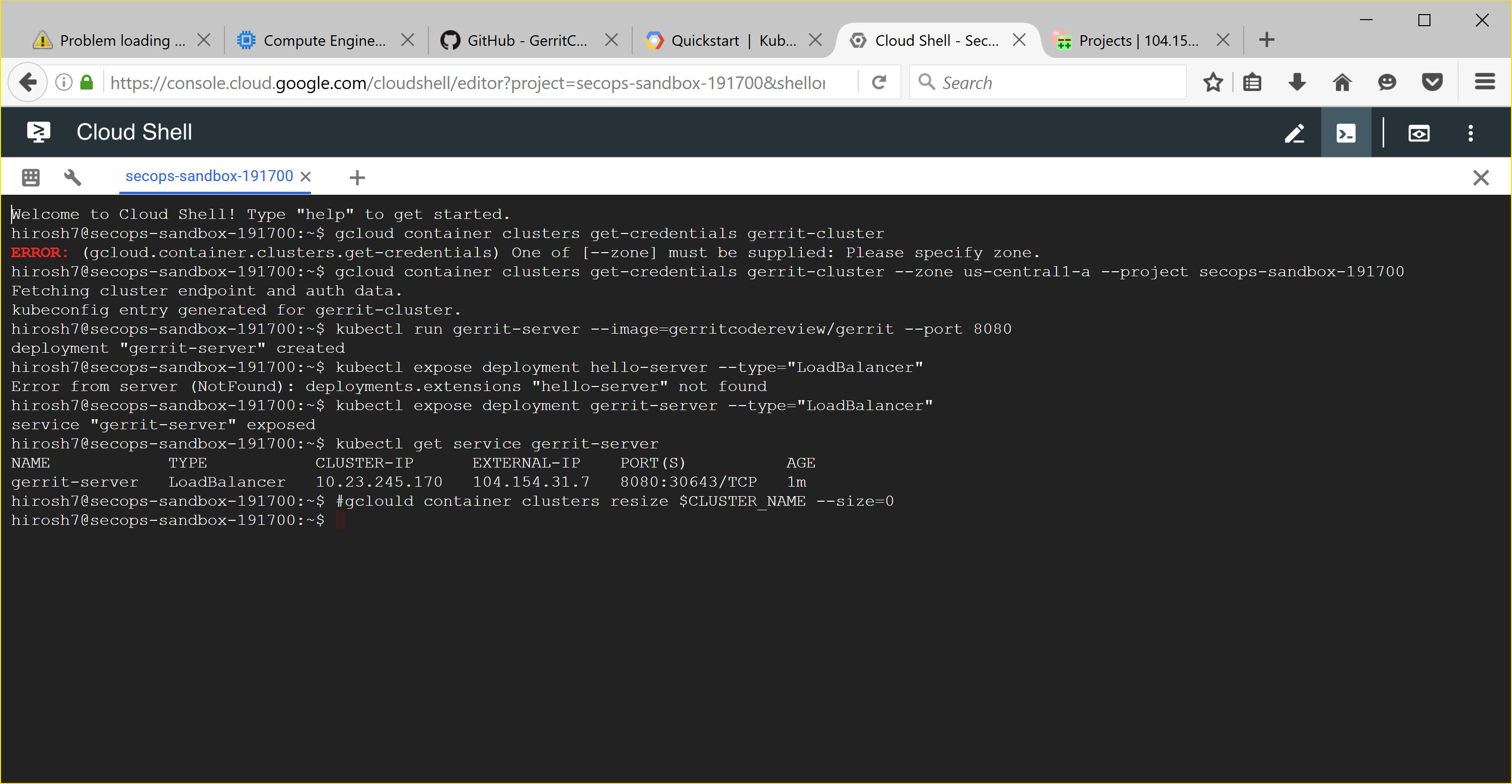
Specifically, I ran the following:
 1# Get authentication credentials for the cluster
 2gcloud container clusters get-credentials gerrit-cluster --zone us-central1-a --project secops-sandbox-191700
 3
 4# Deploying an application to the cluster
 5# Creating the Deployment
 6kubectl run gerrit-server --image=gerritcodereview/gerrit --port 8080
 7
 8# Exposing the Deployment
 9kubectl expose deployment gerrit-server --type="LoadBalancer"
10
11# Inspecting and viewing the application
12kubectl get service gerrit-server
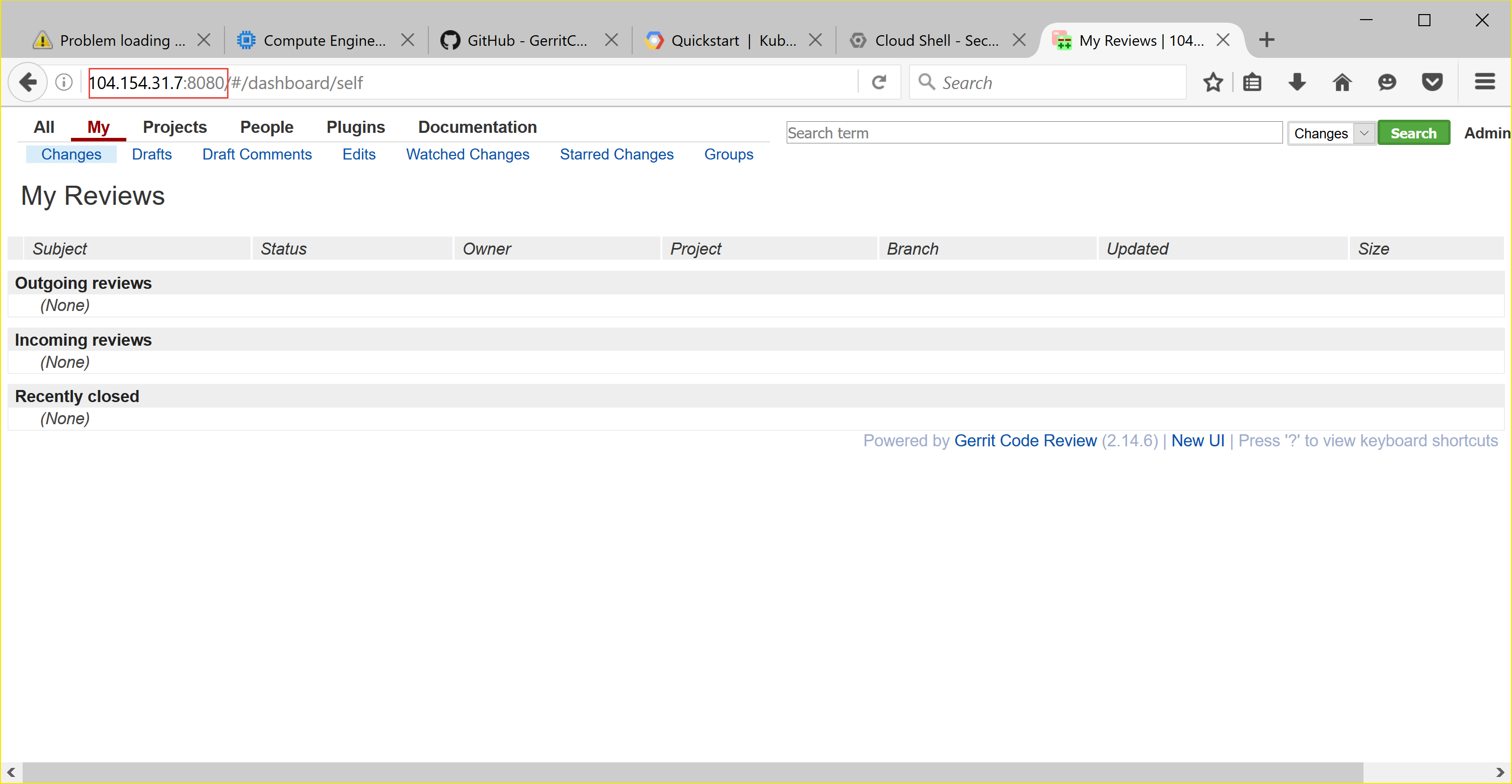
This last command will show you what the cluster’s external IP address is. In order to connect to the service from a local web browser, just browse to: http://<external-ip>:8080. If all goes well, when you browse there you’ll see the Gerrit Server screen.
Tip
The > kubectl run command uses the following –image=gerritcodereview/gerrit. This image name was pulled from the GerritCodeReview/docker-gerrit Github repo
Warning
If this work is temporary, once you’ve made your observations, follow the instructions in the Google Cloud Platform Kubernetes Quick Start Guide to shutdown and delete your cluster. Day to day load balancing charges can add up.
Tip
If you want to resume your work without going back through the set up, you can change your cluster size to zero which effectively shuts it down (though you may still get load balancing charges - check to be sure). To resume again, resize your cluster back to its original node size. Use these commands: > gcloud config set compute/zone <zone> > gcloud container clusters resize $CLUSTER_NAME –size=0